
Creator How To: Substack Stream Keys
A simple guidebook to help you setup a Stream Key to unlock the use of restreaming platforms.

Introduction
Hey y’all, this piece is going to be a little different from my normal ones — this is a simple guidebook on how to generate and manage Substack Live videos which connect to a secondary restreaming service (such as restream.io).
What is restreaming and why do I care as a creator?
Restreaming is the concept of broadcasting your videos from more than a single source at one time (i.e. Substack and YouTube) enabling a larger audience to view your Live at a single time. These tools utilize Real-Time Message Processing (RTMP) to transmit audio, video, and data over the internet with low latencies — in Layman’s terms, multi-platform broadcasting at the tips of your fingers. There are also other benefits associated with restreaming tools — formatted scenes and transitions, sound effects, name plates, screen sharing, etc. — and those topics may be explored in future writings; however, this article will focus in solely on the creation and management of Substack Live stream keys.
What is a stream key?
A stream key is a unique, randomly-generated identifier used to authenticate and transmit data from an RTMP host to a specific output source (Substack, YouTube, etc.).
Managing a Substack Stream Key
📝 The following steps outline how to create and access your Substack stream key.
📝 Stream Keys are single use — each Live will have a unique stream key and that key will need to be re-associated with Restream for every live.
Generate a Substack live and stream key
Using a web browser — on desktop or mobile device — navigate to the Dashboard for your Substack publication.
URL Convention:
https://<your-publication-domain>.substack.com/publish/homeURL Example:
https://supercoolpub.substack.com/publish/home
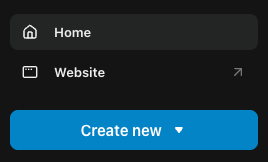
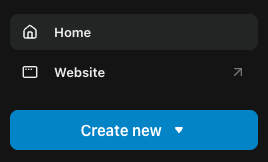
Select the
Create Newbutton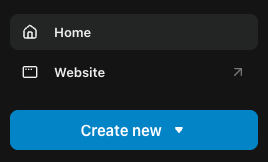
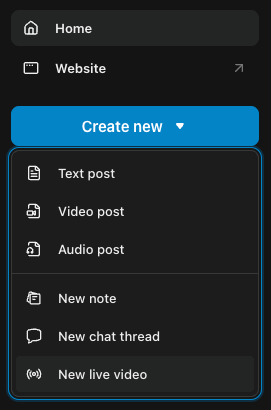
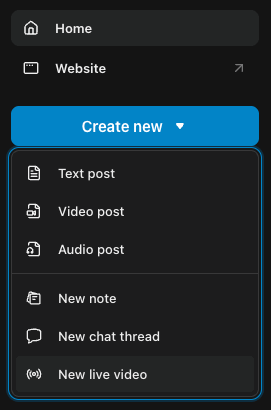
Select the
New Live Videobutton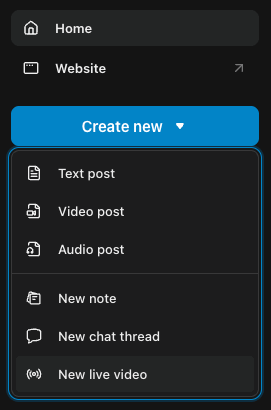
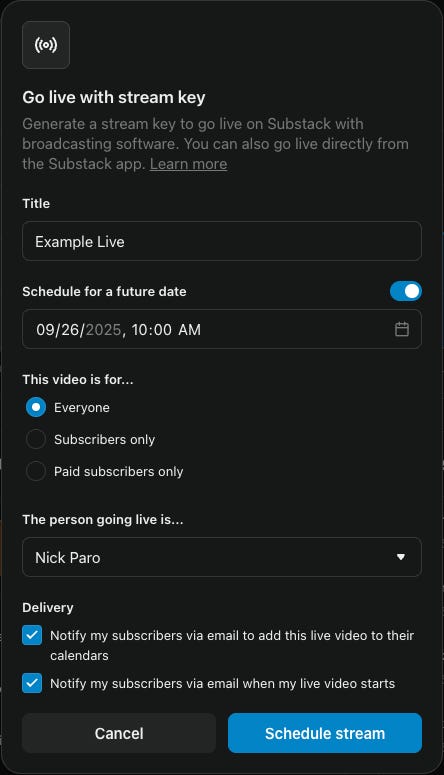
Complete the form to name and schedule your Live
Select the
Schedule streambutton to create the live event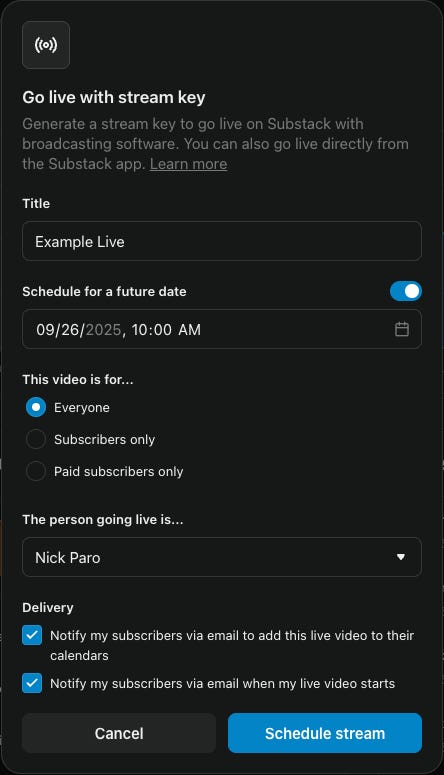
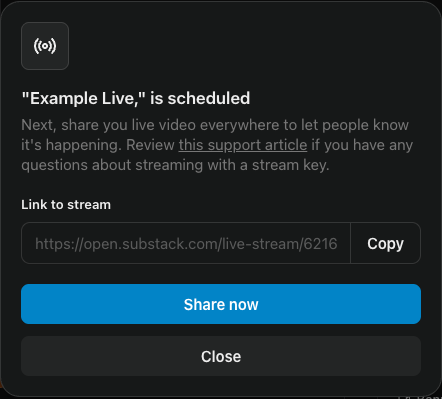
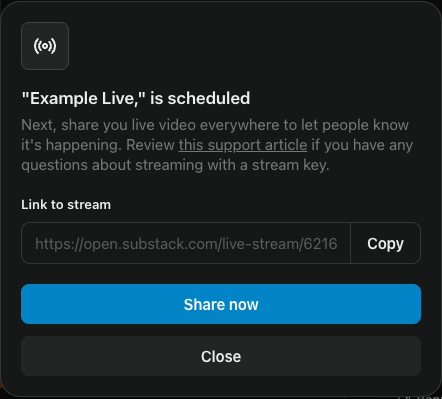
Select the
Closebutton on the new pop-up📝 the URL in this pop-up is a show link and is not needed in these instructions
Select the
Create Newbutton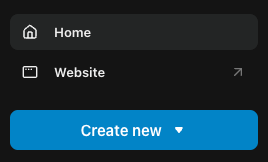
Select the
New Live Videobutton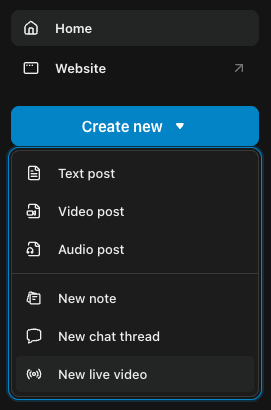
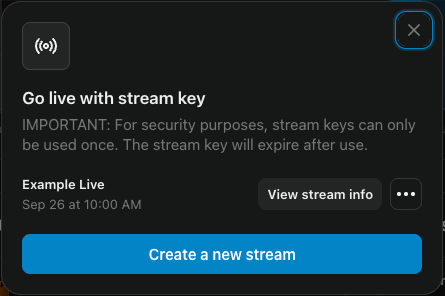
Select the
View stream infobutton for your scheduled Live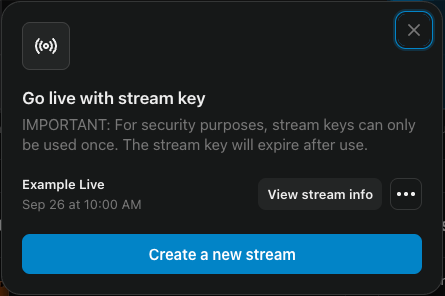
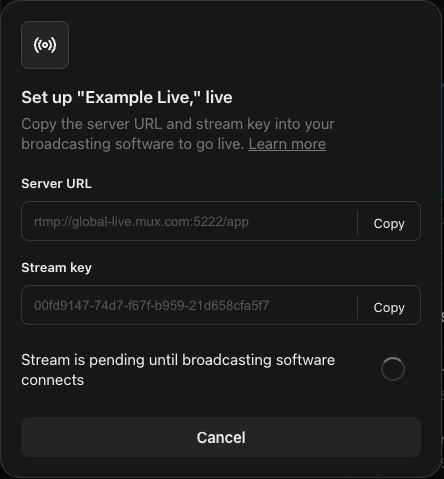
Select the stream key’s
Copybutton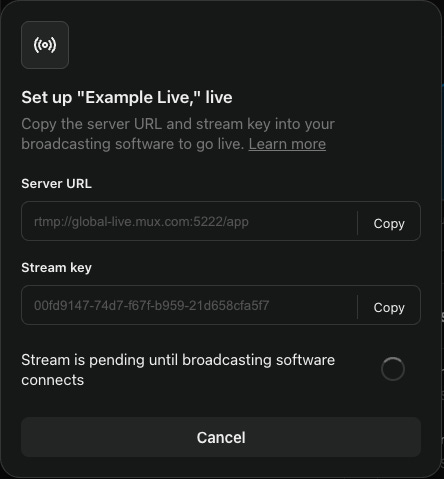
Associate a Substack stream key with Restream.io
Using a web browser — on desktop or mobile device — navigate to your personal or professional restream account.
URL: app.restream.io/home
Select the
Channelsbutton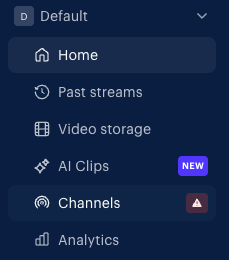
IF FIRST-TIME SETUP or ADDING A NEW CHANNEL
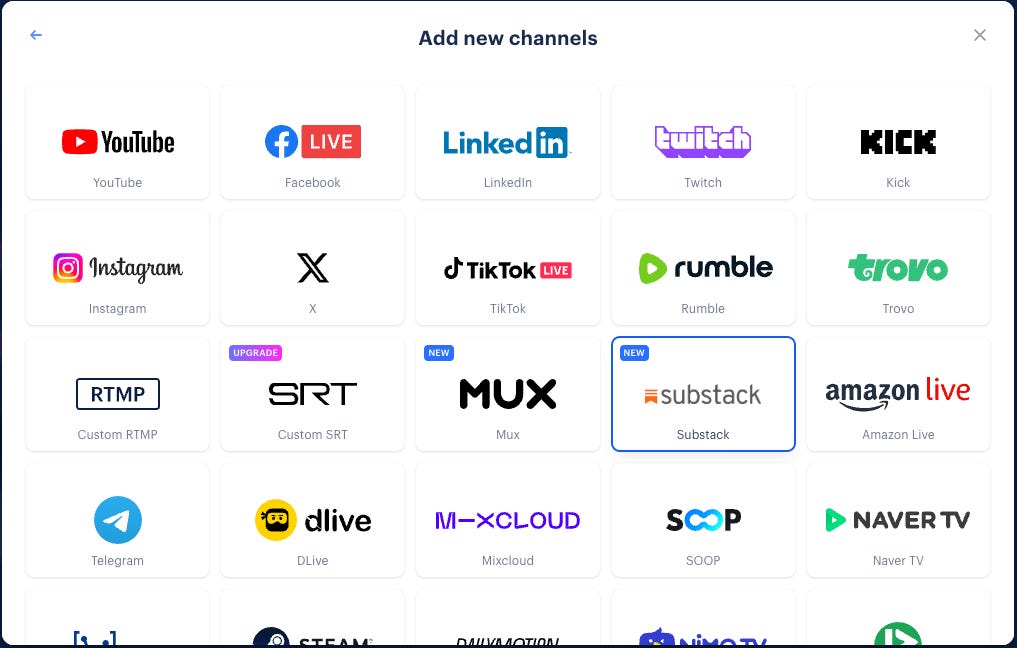
Select the
Add channelsbutton
Select Substack button from the list of channels
Complete the form
Select the
Add Channelbutton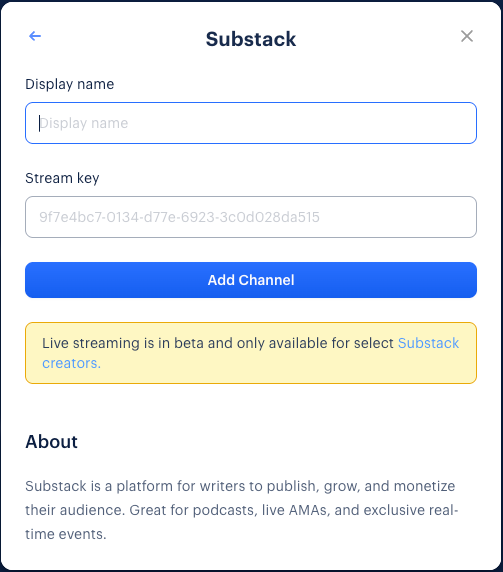

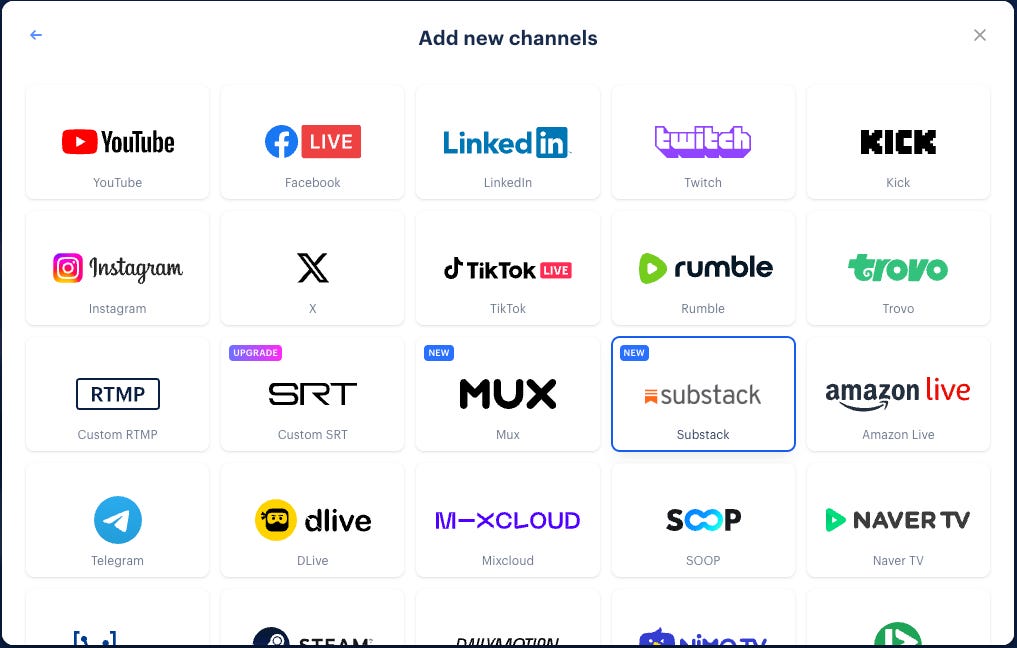
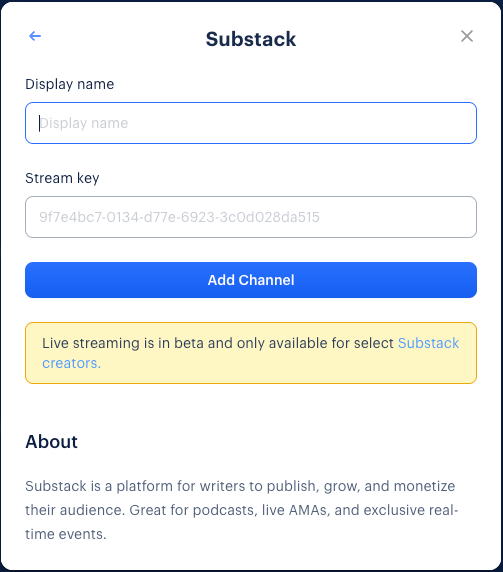
IF USING AN EXISTING CHANNEL
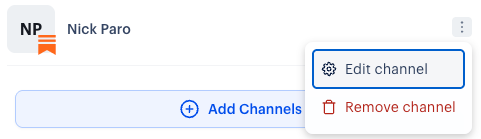
Select the 3-dot menu to edit an existing channel

Select the
Edit channelbutton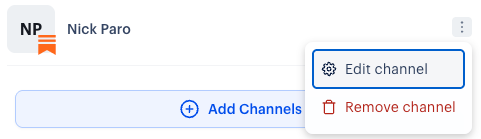
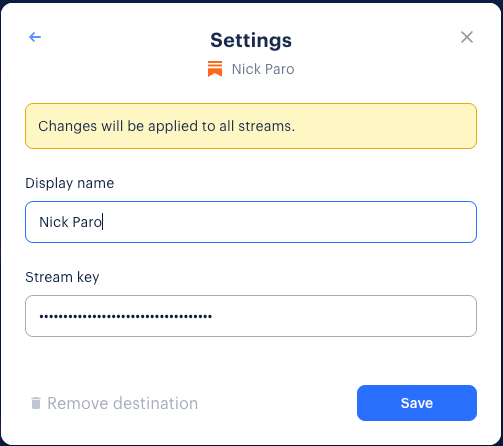
Complete the form
Select the
Savebutton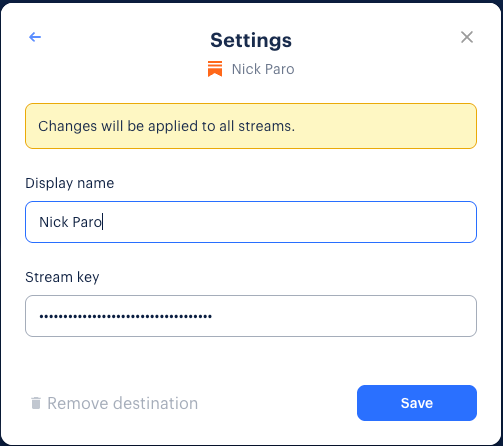

Nick’s Notes
I'm using poetry, podcasting, and Lives to discuss the intersections of politics, veteran's issues, men's issues, mental health, technology, and so much more. This is a reader supported publication where engagement is encouraged and transparency is key — please consider becoming a paid subscriber today and grow the community!
Nick you are a pearl. Not using it right now, but saving your article. Thank you!
Thanks for doing this, Nick. There is absolutely no way I could have figured this out on my own.